


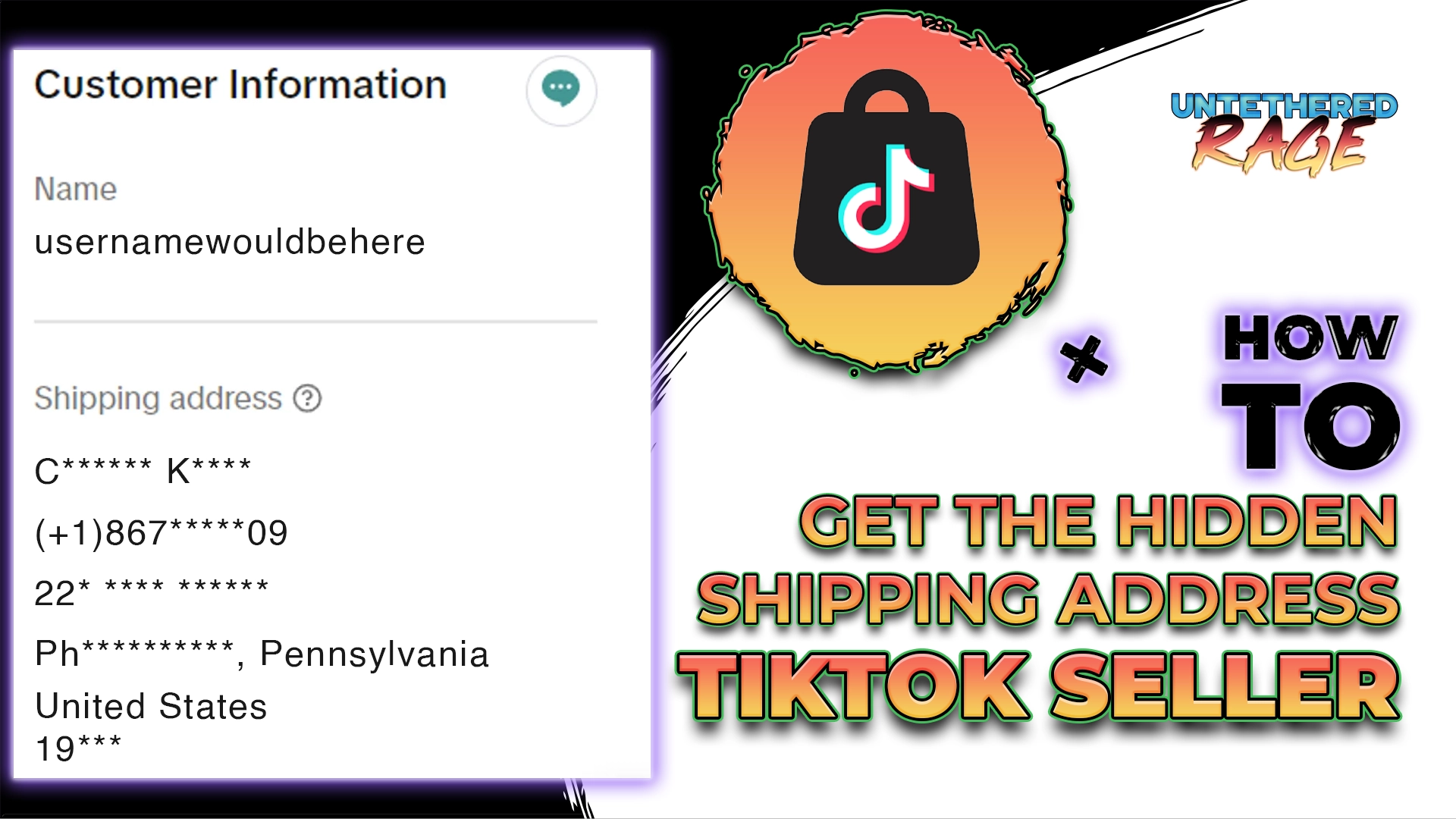
Are you struggling with TikTok Seller Center shipping issues, such as starred-out customer addresses or the need to manually print labels for every order? You’re not alone.
You probably have a screen like this:
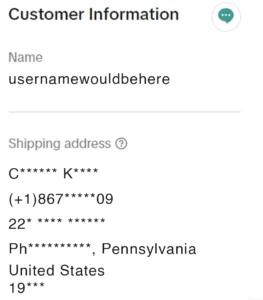
Many sellers face this problem when using TikTok Shipping, but the solution is simpler than you might think. In this guide, I’ll walk you through the exact steps to resolve these issues, switch to Seller Shipping, and streamline your order fulfillment process. Let’s dive in!
- Create a Label:
Go to the “Manage Orders” tab in the Seller Center and click the “Create Label” button. Follow the steps and select “Print Label.” This will take you to a confirmation screen where you can view the shipping label as a PDF. Note that the customer’s address and name will appear as “***” (starred out). - Set Up a Shipping Template:
Navigate to the “Shipping Templates” section and create a new shipping template. - Switch to Seller Shipping:
Go to the “Shipping Options” tab and select “Seller Shipping” (located on the right side, separate from TikTok Shipping).
Why this matters: By following these steps, you can avoid the headaches caused by TikTok Shipping and ensure a smoother order fulfillment process. Switching to Seller Shipping not only saves you time but also allows you to run ads without worrying about obscured customer information.
If you found this guide helpful, feel free to share it with other sellers who might be facing the same issue. For more tips and tricks on managing your TikTok Seller Center, stay tuned to this thread or explore our other resources. Keep grinding, and here’s to your success.